
Home computer security refers to the process of protecting data and files from unauthorized access. Now, the question is: How can you protect your home computer? To protect your home computer, should use strong passwords, install antivirus software, lock the computer, enable the firewall, and back up data.
Today, in this post, we’ll discuss all the tips that can help protect your computer. So, keep reading this blog.
What is a Home Computer?
A Computer is used to collect, store, analyze, and process information, which is important in homes, offices, industries, sciences, and businesses. A computer simplifies human work; it helps to do various tasks of a family, such as writing, accounting, designing, and researching.
Typically, a home computer is used to complete various tasks automatically, which saves time and labor. It facilitates the communication and exchange of information through the Internet, creating opportunities for global communication. In addition, a home computer is connected to multiple nodes in a network, such as hubs, modems, printers, and servers.
Home computers are used for web browsing, email communication, gaming, word processing, presentations, and multimedia. In addition, it is used in educational institutions and research laboratories for collecting and analyzing information. Home computers provide a large and reliable capacity for storing data.
How can you protect your Home Computer?
A home computer stores your sensitive data, such as images, documents, software, and financial data. So, it is very important to secure your computer from hackers or unauthorized access.
Our cybersecurity team has analyzed and given some special tips to protect your home computer. We hope the tips will be helpful for you to secure your computer from unauthorized access.
1. Create a Strong Password
Use a very strong password to protect your computer from unauthorized access. You should avoid using simple passwords like DOB, mobile number, employee ID, and 123456, which are some of the most common reasons for attacks. So, create a strong password for your home computer and change it regularly (i.e., between 30 and 180 days).
Tips to Create a Strong Password:
- The password length should be at least 12-14 characters long.
- The password must have uppercase letters (A–Z), lowercase letters (a–z), numbers (0 – 9), and special characters (@, #, $, %, ^, (,), &, *!).
For example, Hk&T%34#uTb; is a strong and standard password.
2. Use a Unique Password
Our cybersecurity experts recommend using strong and unique passwords for each account. If you use a single password for all accounts and a cyberattacker gains access to one account, the attacker will also gain access to all other accounts.
So, if you want to protect your sensitive and business information from attackers, then it’s important to use a separate, strong, and unique password for each account.
For example:
- Laptop Login -> Use a strong and unique password.
- Email Login –> Use a strong and unique password.
- Facebook Login –> Use a strong and unique password.
3. Use an Antivirus Software
You should use antivirus software to help protect your home computer from viruses, malware, Trojan horses, and other cyber threats. It scans every file that comes through the internet, USB devices, or external hard disk to your laptop or computer, and helps to protect your system.
Expert Tips
- Use a professional anti-virus software such as Bitdefender, Norton, Kaspersky, Panda, ESET, Avast, and AVG
- Keep updated with the latest version.
4. Lock Your Home Computer
If an unauthorized user or attacker gets access to your computer, they can steal your sensitive information or inject malware into your computer.
Expert Tips
- To save your sensitive information on a computer, don’t use an automatic login feature that saves your username and password.
- It is better always to log off when you are away from your laptop.
5. Careful use of USB Devices
USB devices are a very easy medium to transfer data from one computer to another. The use of external USB devices can easily harm your home computer and system. So, you have to be very careful before plugging them into a computer or any other device.
Expert Tips
- Don’t use the same USB devices for your home and office computers.
- Don’t plug unknown USB devices into your computer.
- Ensure that all external devices come from a reliable source. If you feel there are any suspicious files, please scan them with antivirus software.
6. Back Up Your Data
Data backup is another important tip that can protect your home computer. It will restore data in case of data destruction. If an unauthorized user can access and destroy your files, then you can recover your data from backup storage. It acts as a secondary storage of data, which is used for future data protection.
Expert Tips
- You can do your data backup manually or automatically by archiving to an external hard drive or using Dropbox or Google Drive.
7. Secure Your Home Network
If you want to secure your home computer and network, you should use a strong password for your Wi-Fi network. A strong password will help to protect your network and home computer from unauthorized access.
8. Updated Operating system
Our computer security team recommended that you update your operating system and other software with the latest security patches. This will ensure that your computer is up-to-date and free from viruses, to keep information secure on your computer.
Tips to Update
- Start button > Control Panel> System and Security> and then clicking Windows Update.
- Click Check for updates
- If any updates are found, click Install updates.
9. Delete Suspicious and Phishing Emails
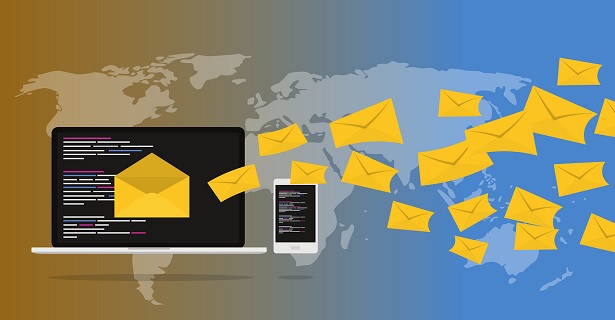
To secure your sensitive information, you should avoid phishing and suspicious emails. A phishing email may contain viruses or malware. When you download the malicious attachment file, the malware will install on your computer to hack your information.
A phishing email may also contain a suspicious link to a vulnerable website to compromise your bank details, login credentials, and credit card details. If you think your incoming email is suspicious, then you can make a phone call to the sender to confirm that he/she sent the mail.
Expert Tips
- Try to avoid opening spam emails.
- Do not click on links in spam messages.
- Or think before you click on the link.
- Do not reply to spam messages.
- Download spam filtering tools and use anti-virus software.
- Do not provide your personal or business email address.
- Better to delete the spam emails.
10. Use a Firewall
This is one of the useful tips to secure your home computer from hackers. Typically, a firewall is a security tool that is designed to monitor incoming and outgoing network traffic based on security rules and protect the network system. The main purpose of a firewall is to create an obstacle between internal and external networks to block malicious threats.
If your home computer ports are open, then a malicious code can be sent by an attacker to gain unauthorized access. In that case, a Windows firewall can act as a simple defense by closing all ports.
Expert Tips
In the Windows operating system, this can be found by navigating to:
- Start→ Control Panel→ System and Security→Windows Firewall.
- Click Turn Windows Firewall On or Off.
- Turn on the Windows Firewall radio button.
- Click OK.
11. Keeping Web Browser Up to Date
Keeping your web browser up to date is very important for computer security and ensuring that web pages load properly. Out-of-date web browsers can have serious security problems, such as phishing, viruses, Trojans, spyware, adware, and other sorts of malware.
However, Security patches are released for popular browsers all the time. It requires a couple of minutes for an update to be available; just download and install it.
Steps for updating the Firefox browser
- First, click the menu button, and then click Help -> About Firefox.
- Click on About Firefox, and a window will open.
- Then, Firefox will begin checking for updates and downloading automatically.
- Click Restart to update Firefox
Steps for updating Google Chrome
- First, open the Google Chrome browser
- At the upper-right corner of the screen, look at More.
- Then, Click Update Google Chrome.
- If you don’t see this button, then you are on the latest version
- Click Relaunch.
12. Avoid installing Software From Unknown Sources
When downloading and installing software from an external source, we don’t need to check whether the source is trusted or not. The problem is that many external sources are not safe to download software from. If you choose to download software and install it yourself, you could be putting malware on your laptop.
Expert Tips
- So, before downloading and installing software, first you have to check if the source site is trusted by Secure Socket Layer (SSL), such as https://hafsatech.com
- It is better to download your software either from the system’s store or the vendor’s site.
FAQs about Home Computer
If you still have some questions about how to protect your computer, keep reading the FAQs section.
1. How can you protect your home computer with cyber awareness?
The main key cyber awareness steps for the protection of a home computer are as follows:
- Install antivirus software.
- Keep your software updated.
- Use strong passwords.
- Avoid suspicious and phishing emails.
- Enable a firewall.
- Keeping Web Browser Up to Date
- Lock Your Home Computer
- Careful use of USB devices
- Back Up Your Data
- Secure Your Home Network
2. What is the best home computer protection?
The best home computer protection is self-awareness, which means cyber awareness. If you have basic cybersecurity knowledge, you can easily protect your computer. However, the best protection tools for the home computer are to use an antivirus software and a strong password.
3. How can I protect my home computer?
You can protect your home computer by using these cyber awareness steps:
- Install antivirus software.
- Keep your software updated.
- Use strong passwords.
- Avoid suspicious and phishing emails.
- Enable a firewall.
- Keeping Web Browser Up to Date
- Lock Your Home Computer
- Careful use of USB devices
- Back Up Your Data
- Secure Your Home Network
Conclusion
Finally, home computer security refers to the process of protecting the computer from unauthorized access, use, modification, and destruction. Our security team has provided the best tips on how can you protect your home computer. Hope this article will be helpful for you to secure your home computing devices.